How to Use RésuméBoost
A complete walkthrough of every feature — from uploading your first résumé to tracking your applications and landing more interviews.
1. Getting Started
RésuméBoost turns your existing résumé into a boosted, ATS-optimized application package in seconds. Here's how to get up and running.
- 1
Create a free account
Sign up at the homepage — no credit card needed. You get 20 free credits to start — spend them on any core feature. Verify your email when prompted.
- 2
Upload your base résumé
Go to Profile → upload your résumé (PDF or Word). This becomes your permanent base, reused for every generation so you never have to re-upload.
- 3
Find a job you want to apply for
Open the job posting in your browser. You'll either copy its URL or paste the full text.
- 4
Generate your boosted package
Click New Résumé, paste the job URL or text, choose what to generate, and hit Generate. In ~60 seconds you'll have a boosted résumé (and optionally a cover letter + CV).
- 5
Download and apply
Download your polished PDF documents and submit them with your application.
2. Your Profile & Résumé Data
Your Profile page is the control center for everything that persists across all generations. The most important thing here is your base résumé— it's the foundation every boosted generation starts from. You can add your résumé data in three different ways.
How to add your résumé data — 3 ways
Pick whichever option matches where your most up-to-date professional info lives. All three result in a PDF you upload on the Profile page.
Upload your own résumé
RecommendedIf you already have a polished PDF or Word résumé, this is the fastest path. RésuméBoost extracts the structured data automatically.
- Have your résumé file ready (.pdf, .doc, or .docx)
- Go to your Profile page → Your résumé section
- Drag-and-drop the file (or click to browse)
- Review the parsed data in the editor and save
Import from LinkedIn
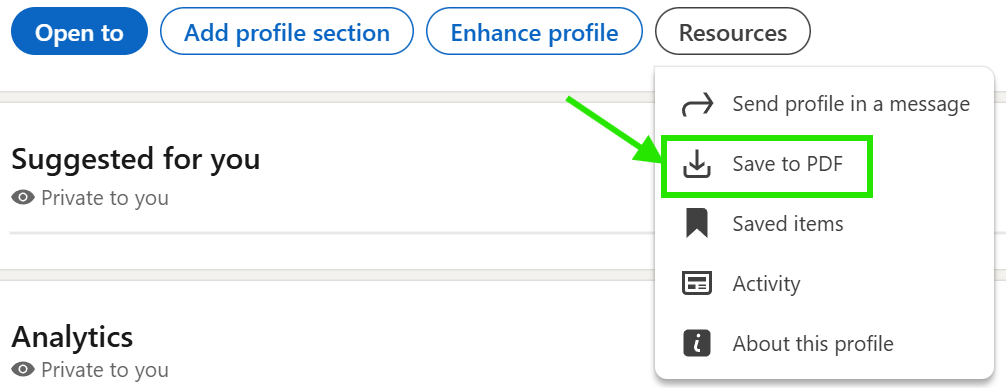
LinkedIn lets you download your profile as a PDF résumé in a few clicks. Upload that PDF to RésuméBoost just like a regular résumé.
- Open your LinkedIn profile
- Click the Resources button (in the row with Open to, Add profile section, Enhance profile)
- Choose Save to PDF — your browser downloads the file
- Come back here, go to Profile → Your résumé, and upload the PDF
Import from Indeed
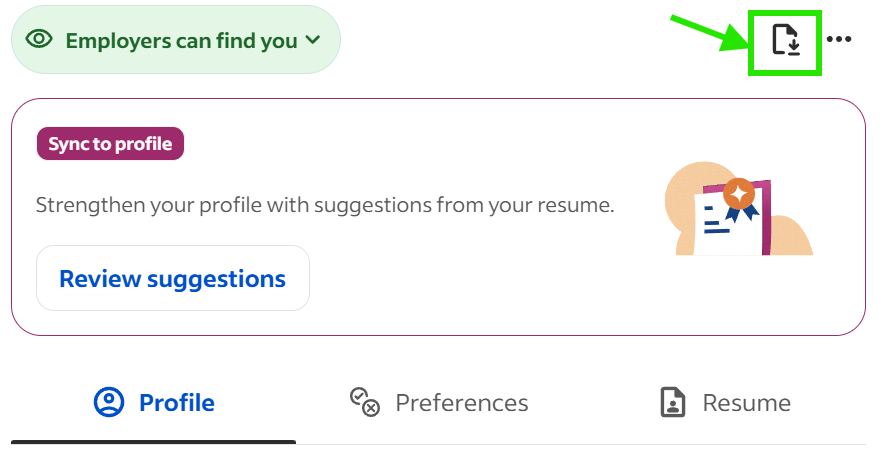
If your most up-to-date work history lives on Indeed, you can download it as a PDF from your Indeed profile and upload it here.
- Open profile.indeed.com (or click Indeed Profile in the top-right of Indeed)
- Click the download icon (top-right of your profile page, next to the three-dot menu)
- Come back here, go to Profile → Your résumé, and upload the PDF
What else is on the Profile page
Base Résumé
The résumé all generations start from. Upload once — it's stored permanently. The health score and editor live here.
Boost My Résumé
RésuméBoost rewrites every section of your base résumé — sharper action verbs, tighter bullets, ATS-friendly phrasing — without inventing any facts. Costs 1 credit, and unlocks free ATS, Printable, and CV PDF downloads from your Profile page. (See the Boost section below.)
Your Voice
Formality, writing style, cover letter tone, and self-description phrases. Set once, applies to every generation. (See Voice Profile section below.)
Profile Photo
Used only in the Full CV document. Upload a professional headshot. It's stored securely and can be changed or removed at any time.
Boost My Résumé — improve every section
The Boost My Résumé button (next to Download PDF in the résumé card header) uses RésuméBoost to intelligently rewrite every section of your base résumé — without inventing any facts. What it improves:
Professional summary, experience bullets (stronger action verbs, parallel construction, removed weak openers), education notes, project descriptions, and skills ordering — all using only facts already in your résumé.
Company names, job titles, employment dates, schools, certifications, and skills are locked to your source data. No numbers or metrics are invented.
- 1
Click Boost My Résumé
The button appears next to Download PDF once your résumé is uploaded and saved.
- 2
Review the changes
A side-by-side before/after diff is shown for every section that changed. Use the Revert toggle on any section to keep your original wording for that section.
- 3
Save changes
Saving consumes 1 generation credit (Free/Basic plans). Pro and Teams plans boost for free.
- 4
Download 3 PDFs — free
After boosting, the Download PDF menu unlocks ATS Résumé, Printable Résumé, and CV PDF — all free, since the boost credit pre-paid for them.
Downloading PDFs from your Profile
The Download PDF button on the Profile page gives you three formats — no job posting needed:
ATS Résumé
Single-column, clean formatting optimized for applicant tracking systems. Use this for online submissions.
Printable Résumé
Designed, recruiter-facing layout with richer visual structure. Use this when emailing directly or handing to someone in person.
CV PDF
International-style curriculum vitae with your profile photo. Best for academic roles, research positions, and European applications.
Objective → Summary auto-conversion
If your uploaded résumé has an Objective section (common in older templates), RésuméBoost automatically maps it into the Summary field — which is what modern ATS systems and recruiters expect. An amber banner appears after parsing to let you know, and prompts you to review and update the text for your current target role.
3. Generating a Boosted Application
The Generate page is the heart of RésuméBoost. Here's everything on it and how each option affects your output.
Step 1 — Your Résumé
Your most recently uploaded résumé is automatically pre-loaded. You can upload a different file for any single generation without changing your profile résumé.
Step 2 — The Job Posting
You have two ways to provide the job details:
Paste the direct link to the job posting. RésuméBoost will scrape the full description automatically.
Open the job posting, select all text from the job title to the bottom of the page, and paste it here. Use this when LinkedIn or Indeed URLs don't scrape correctly.
Step 3 — What to Generate
Each option costs 1 credit:
Boosted Résumé Only
A single-page (or two-page for senior roles) résumé rewritten and reordered for the exact job. Best for quick applications or roles you're mildly interested in.
Résumé + Cover Letter
The full package most hiring managers expect. The cover letter is written in your voice and references specific details from the job posting.
Résumé + Cover Letter + Full CV
Adds a detailed academic/professional CV — ideal for senior roles, research positions, or European applications. You can optionally add a profile photo to the CV.
Step 4 — Style (Paid Plans)
Controls the depth, length, and focus of your résumé. RésuméBoost auto-detects the best style from the job description keywords — you can override it on paid plans.
Entry-Level
Concise · Job-targeted · Lean and clean
Ideal for new grads, career changers, and roles listing 0–3 years of experience. Keeps bullets tight and focused.
Mid-Level
Full detail · Keyword-rich · Balanced
Best for 3–10 year professionals. Includes full bullet sets, a strong summary, and broad skill coverage.
Senior-Level
Leadership · Impact-driven · C-suite ready
For director+ and executive roles. Emphasizes scope, revenue/team impact, strategic leadership, and board-level language.
4. ATS Score & Keyword Matching
The ATS (Applicant Tracking System) score tells you how well your boosted résumé matches the job posting keywords that automated screeners look for.
What is an ATS Score?
Recruiters use software (like Greenhouse, Lever, Workday) to filter résumés before a human reads them. These systems scan for specific keywords from the job description. Your ATS score is the percentage of those keywords present in your résumé.
What's a Good Score?
- 90–100 Excellent — very likely to pass ATS screening
- 75–89 Good — strong keyword coverage
- 60–74 Fair — consider adding missing keywords
- Below 60 Needs work — add the suggested keywords
Before & After Scores
Every generated résumé shows two scores:
Your original résumé's ATS match against this specific job — shows where you started.
Your boosted résumé's ATS match — shows the improvement RésuméBoost achieved.
Matched & Missing Keywords
Below each score you'll see two keyword lists:
Matched keywords
Keywords from the job description that appear in your résumé — these are working for you.
Missing keywords
Keywords the job requires that aren't in your résumé. Use these to further edit your résumé in the editor.
Industry Mismatch Detection
If the job posting is in a substantially different industry from your work history, the ATS score card shows an Industry shift detectednotice. This isn't a failure — it's an honest signal that the application is a career-change move. In that case:
Career Pivot Planner
A link to the Career Pivot Planner tool appears directly on the ATS card. Use it to map your transferable skills and get a 30/90-day plan toward the new direction. (See Career Tools section below.)
Missing keywords will be higher
A high missingKeywords count on a career-change application is expected and correct — RésuméBoost never fabricates experience to fill gaps. Use the missing keyword list to identify what skills to develop.
Ultra Boost — one-click complete optimization (Pro / Teams)
A regular generation tailors your résumé and then shows you suggestions to push the score higher — normally you'd work through each one yourself (adding keywords, sharpening bullets, boosting individual sections). Ultra Boost does all of that for you in a single click. It reads the full ATS breakdown and every suggestion, then rewrites your résumé to address every weak dimension at once — no manual follow-up needed.
Targets all weak scoring dimensions simultaneously — incorporates missing keywords where you have genuine evidence, strengthens action verbs, surfaces quantified impact, and cleans up formatting and length — then re-scores and re-renders your PDFs automatically.
The same anti-fabrication rules as every RésuméBoost feature: company names, job titles, dates, schools, certifications, and skills stay locked to your real history. Keywords you can't honestly support are listed as gaps, never invented.
- 1
Generate a résumé first
Ultra Boost works on a completed generation — run a normal generation, then open it.
- 2
Click Ultra Boost
The violet Ultra Boost button sits next to Re-Score in the generation toolbar. A progress screen shows it analyzing, rewriting, scoring, and re-rendering.
- 3
Review the before / after
When it finishes, the ATS card shows your score before Ultra Boost next to the new score so you can see the improvement at a glance.
- 4
Always review the result
Ultra Boost rewrites a lot at once — read every section, especially Skills, before downloading to confirm it still represents you accurately.
5. Résumé Health Score
The Health Score rates your base résumé's overall quality independent of any job posting. It's displayed on your Profile page and updates whenever you upload or edit your résumé.
What It Measures
Six dimensions displayed in a radar chart, each scored 0–10:
- ATS — How well your file parses through applicant tracking systems (clean structure, standard sections, no images-as-text).
- Keywords — Coverage of skills, tools, and industry terms recruiters search for.
- Quantified — Bullets backed by numbers, percentages, dollars, or measurable outcomes.
- Action Verbs — Strong, varied verbs starting each bullet (led, shipped, scaled — not "responsible for").
- Formatting — Consistent dates, alignment, headings, and bullet style throughout.
- Length — Appropriate density for your experience level (typically 1 page early career, 2 pages senior).
How to Improve It
- Read the specific suggestions shown below the radar chart — each one targets a real gap in your résumé.
- Use Boost My Résumé for a one-click RésuméBoost rewrite that often raises the score 5–15 points (see Boost section above).
- Use the résumé editor on your Profile page to fix issues in place.
- Add skills using the Intelligent skills selector (see Skills section below).
- Quantify bullets: turn "managed a team" into "managed a team of 8 engineers, reducing deploy time by 40%."
6. Your Voice Profile
Your Voice Profile tells RésuméBoost how to write for you — tone, style, and personality. It's set once on your Profile page and applies to every generation automatically.
Formality
Casual / Startup
Energetic · Conversational · Direct
Use for startups, creative roles, tech companies, and anywhere culture-fit is emphasized over hierarchy.
Balanced
Professional · Clear · Adaptable
The safe default for most industries and roles. Works everywhere without sounding stuffy or overly casual.
Corporate / Enterprise
Formal · Precise · Authority-driven
Use for finance, law, consulting, government, and large enterprises where polish and gravitas matter.
Writing Style
Concise & Punchy
Short bullets · High signal · No filler
Every word earns its place. Ideal for competitive roles where screeners spend 6 seconds per résumé.
Balanced
Complete thoughts · Natural flow
Full sentences with context. Reads naturally to both humans and Intelligent screeners.
Detailed & Thorough
Rich context · Full narrative
Appropriate for senior, academic, or technical roles where depth demonstrates mastery.
Cover Letter Tone
Controls the emotional register of every cover letter generated. Pick the tone that matches your personality and the company culture.
Enthusiastic
Energetic · Excited · Forward-leaning
Great for startups, creative roles, and companies that value visible passion. Reads as genuinely excited about the opportunity.
Professional
Polished · Measured · Industry-standard
The safe default for most applications. Confident and warm without being overly formal or casual.
Confident
Direct · Assertive · Results-first
Opens with impact and credentials rather than enthusiasm. Best for senior roles, competitive markets, and roles where authority signals matter.
Warm
Personable · Human · Relationship-focused
Emphasizes collaborative fit and genuine interest in the team. Works well for people-oriented roles (HR, account management, teaching, healthcare).
Self-Description Phrases
RésuméBoost generates 10 first-person phrases based on your résumé's industry and experience. Pick up to 3 that resonate with how you'd describe yourself. These are woven naturally into your summary and cover letter opening.
- 1
Go to Profile
Scroll to the "Your Voice" section.
- 2
Click "Generate phrases"
RésuméBoost reads your résumé and suggests 10 curated phrases.
- 3
Select up to 3
Tap the phrases that feel most like you. Selected phrases are highlighted.
- 4
Save
Click Save Voice — your selections persist and apply to all future generations.
7. Résumé Editor
The Profile page includes a full structured résumé editor. Every field you update is saved to your base résumé and used in all future generations.
Editing Sections
Contact & Summary
Name, title, location, contact info, and your professional summary. The summary is the most-read part of any résumé — keep it 2–4 lines and keyword-rich. A Willing to Relocate checkbox is available under Location — tick it and it renders visibly in your PDF documents.
Work Experience
Add, edit, and reorder jobs. Each role supports multiple bullet points. Lead every bullet with a strong action verb (Increased, Reduced, Led, Built, Launched).
Education
Degrees, certifications, and courses. Include GPA if above 3.5 and within 5 years of graduation.
Skills
See the RésuméBoost Skills Selector below for the most powerful way to populate this section.
RésuméBoost Skills Selector
The Skills section has a RésuméBoost suggestion panel. Here's how it works:
- 1
Open the Skills section in the editor
Your current skills appear as removable chips at the top.
- 2
Click "Suggest more skills"
RésuméBoost reads your résumé and generates 55–65 relevant skills for your field.
- 3
Browse the suggestions
Skills you already have are shown with a checkmark. New skills show a + button.
- 4
Add relevant skills
Click + on any skill to add it instantly. Use the Refresh button to generate a fresh set.
- 5
Or type manually
The text area below the chips lets you type or paste skills in bulk.
8. Career Tools
Career Tools extends RésuméBoost beyond documents into the full job search process. Access it from the main navigation.
Job Description Analyzer
Paste any job description and get an instant breakdown: required vs. preferred skills, years of experience, key responsibilities, and the top 10 keywords to include in your résumé.
Job Match Predictor
Scores your background against a specific role across four dimensions — skills, experience, credentials, and industry fit — with a 0–100 overall match score and bar charts per dimension. Helps you triage which applications to prioritize.
Rejection Analyzer
Got a rejection or no-response? Paste any context you have (job description, résumé, notes) and get an honest assessment of the most likely reasons — plus specific fixes for your next application.
Application Tracker
Track every application you submit — company, role, date applied, status (Applied → Interviewing → Offer → Rejected). Filter and sort to stay on top of your pipeline.
Sharpen Your Search
Once you have 2 or more tracked applications or generations, a Sharpen Your Search card appears on your dashboard. It surfaces patterns in your pipeline — response rates, ATS-score trends, recurring keyword gaps, and which roles are converting — so you can focus your effort where it matters most.
Interview Prep (Pro / Teams)
Generates likely interview questions based on the job description and your résumé. Practice your answers and get RésuméBoost feedback on clarity, specificity, and impact.
Recruiter Simulation (Pro / Teams)
Simulates a 6-second recruiter scan of your boosted résumé: what catches the eye, what raises red flags, and an overall hire/no-hire leaning. Use it as a final sanity check before submitting.
Negotiation Coach (Pro / Teams)
Input a job offer and your research — get talking points, counter-offer language, and a market-rate sanity check. Generates personalized counter-offer scripts.
Career Pivot Planner (Pro / Teams)
Designed for career changers. Input a target role and industry, and get a transferable skills map, an honest skills-gap list, and a 30/90-day pivot plan — all grounded in your existing résumé. Also accessible directly from the ATS score card when an industry mismatch is detected.
Career Trajectory (Pro / Teams)
Generates a list of AI-predicted next roles based on your résumé — where your career could go from here. Results are cached in your browser for 90 days and auto-refresh. Accessible from the dashboard.
9. Job Search
The Jobs page lets you search for open roles, see how well your background matches each one, and build a saved pipeline of positions you want to pursue. Job Search requires Basic or above — Basic gets 20 searches/day, Pro and Teams get 100/day. Free plan users see an upgrade prompt instead.
Searching for Jobs
Enter keywords (job title, skill, or role) and an optional location, then click Search. Each result shows the role title, company, location, salary when available, and a Fit Score — a percentage showing how well your base résumé matches the job.
Fit Score
Shows as a percentage bubble on each job card. Green (70%+) = strong match, amber = moderate, grey = lower match.
Highlights
A few key match points shown directly on the card so you can quickly gauge fit without opening the full breakdown.
Breakdown Fit Score
Click this button below the highlights to open a detailed breakdown across four dimensions: skills, experience, credentials, and industry fit — with a bar chart per dimension plus your top strengths and gaps.
Job Card Actions
Save
Bookmarks the job to your Saved tab so you can revisit it later.
Analyze
Sends the job description to Career Tools → Job Description Analyzer for a keyword and requirements breakdown.
Boost Resume
Opens the résumé builder with this job pre-loaded. Generate a tailored résumé for this role in one click. Costs 1 credit.
Track
Adds the job to your Application Tracker as an Applied entry.
Apply
Opens the job listing in a new tab. A Google Search fallback link is shown below for listings that don't have a direct URL.
Saved Jobs Tab
The Saved tab shows all your bookmarked jobs. Each card includes the same fit score, highlights, and breakdown button, plus:
Status tracking
A dropdown on each card lets you move jobs through your pipeline: Saved → Applied → Interviewing → Rejected.
Remove
Delete a saved job from your list at any time — this only removes it from your saved list, not from the job board.
Weekly Job Digest (Basic and above)
Subscribe to a saved search and get a curated email of fresh listings every Monday. Set up your digest from the dashboard — choose your role, location, and recency filter. The digest runs automatically each week and you can trigger a manual refresh anytime. Each listing in the email shows the same fit score bubble, highlights, and breakdown as the live Jobs page.
Recruiter Network (Basic and above)
Opt in to the Recruiter Network from the Networking page to make your résumé profile visible to vetted recruiting teams using RésuméBoost Teams. When enabled, your name, headline, skills, experience, and location are surfaced to recruiters browsing opted-in candidates. You can toggle it off at any time.
10. Generation History
Every résumé, cover letter, and CV you've ever generated is stored in your History. Nothing is deleted unless you choose to remove it.
Download anytime
Click any generation to open it. Download each document as a formatted PDF. You can re-download months later if you lose a file.
Fine-tune in the editor
Open the résumé editor directly from any generated résumé. Adjust wording, reorder bullets, or add any missing keywords without regenerating.
Track score improvement
Each entry shows the source and generated ATS scores side by side — you can see exactly how much each generation improved your match.
Notes (rich text)
Add notes to any generation with a full formatting toolbar — bold, italic, bulleted lists, and more. Use it for recruiter names, phone screen prep notes, interview dates, or key points from the job description.
Share prompt
Share your boosted résumé link with referrals or mentors. The share modal also gives you your referral link to earn extra generation credits.
11. Account & Credits
Credits are how RésuméBoost tracks usage. Each boosted generation costs 1 credit regardless of which "What to generate" option you choose. Boost My Résumé also costs 1 credit (Free/Basic) — but after boosting, all three Profile PDF downloads (ATS, Printable, CV) are free. Ultra Boost (Pro / Teams only) costs 2 credits per run. Pro and Teams plans have unlimited credits, so every generation, boost, and Ultra Boost is effectively free.
Free Plan — 20 credits/mo
Core AI tools: résumé generation, ATS scoring, Job Match Predictor, Rejection Analyzer, and Goals & Roadmap. Job Search, Weekly Digest, Recruiter Network, Ultra Boost, and Pro Tools require an upgrade.
Basic Plan — 100 credits/mo
Everything in Free plus Job Search (20/day), Weekly Job Digest, Recruiter Network opt-in. Pro Tools (Interview Prep, Recruiter Sim, Negotiation Coach, Career Pivot, Career Trajectory) and Ultra Boost require Pro.
Pro Plan — Unlimited
Unlimited credits, 100 job searches/day, all Pro Tools unlocked: Interview Prep, Recruiter Simulation, Negotiation Coach, Career Pivot Planner, Career Trajectory. Plus Ultra Boost, custom résumé styles, and 4 cover letter tones.
How to Share Your Referral Link
- 1
Generate a résumé
Open any entry in your History.
- 2
Click Share
The share modal contains your personal referral link.
- 3
Share to LinkedIn
Click the LinkedIn button — it automatically copies your post text to your clipboard and opens LinkedIn. Paste the text into your post.
- 4
Earn credits
When someone subscribes using your link and stays subscribed into their second month, you both earn 20 bonus credits (Basic plan referrals) or a $5 billing credit (Pro plan referrals). Credits stack on top of your monthly allowance.
12. UI Conventions & Visual Cues
RésuméBoost uses consistent visual patterns to help you instantly understand what an action does and what it costs. Here's the full key.
Button Colours
Button colour tells you at a glance whether an action costs a credit:
- Boost Resume — tailors your résumé to a job posting
- Boost My Résumé / Re-Boost — rewrites your base résumé (1 credit, Free/Basic)
- Download PDF from your Profile — renders a fresh PDF (1 credit, Free/Basic — free after Boost)
- Ultra Boost — full one-pass optimization (2 credits, Pro/Teams only)
- Save — saves your edits
- Re-Score — re-runs ATS scoring
- Download PDFs from a completed generation — always free
- All Career Tools, navigation, settings, and editor actions
Plan & Feature Badges
Paid / Pro badge
A small chip reading 'Paid' or 'Pro' appears on buttons or features locked to paid plans. Hovering still works so you can see what the feature does — you'll be prompted to upgrade when you click.
Ultra Boost
Available on Pro and Teams plans. Costs 2 credits and performs a complete one-pass optimization of your résumé — addressing every weak dimension at once with no manual follow-up needed.
Colour-Coded Scores
ATS scores and résumé health dimensions use the same colour scale throughout the app:
Great match or high score. Proceed with confidence.
Room to improve. Adding missing keywords or strengthening bullets will push this higher.
Low match or weak dimension. The missing keywords list is your action plan.
Notice & Info Banners
Blue info banner
Helpful context or a link to more information. No action required.
Amber/yellow banner
A caution or note worth reading — for example, the 'Objective → Summary conversion' notice. Take a look but it's informational.
Blue 'Always review' banner (on generated résumé)
A reminder to read through your boosted résumé before downloading to make sure it still sounds like you. This banner is always shown on generated résumés.
Red error banner
Something went wrong. The message explains what and how to recover.
13. Pro Tips for Maximum Impact
These strategies separate users who get callbacks from those who don't.
Always paste text, not just URLs, for important roles
URL scraping occasionally misses sections. For roles you really want, paste the full job text to ensure nothing is missed by RésuméBoost.
Apply the 3-keyword rule after every generation
Check the Missing Keywords list. Pick the 3 most important ones. Find a natural place to add each in the résumé editor. This alone can lift your score by 10–15 points.
Use the Job Description Analyzer as a pre-flight check
Before generating, run the job description through Career Tools → Job Description Analyzer. Note the top required skills. If several are missing from your base résumé, add them in the Skills Editor first so they're baked into the generation.
Match your Voice Profile to the company's culture
Spend 2 minutes on the company's About page and LinkedIn. If they say "move fast", switch to Casual/Startup + Concise. If it's a bank or law firm, use Corporate + Detailed. A single voice change can shift the entire tone.
Keep notes for every application
Use the Notes feature on each generation to record the recruiter's name, the phone screen date, and key points from the job description. When you get a call back 3 weeks later, you'll have everything you need.
Run the Interview Prep tool before every interview
Paste the job description into Career Tools → Interview Prep after you've gotten the call. Practice 5 questions out loud and submit your answers for RésuméBoost feedback. This 30-minute prep session is the highest-ROI thing you can do.
Maintain your base résumé continuously
Every time you finish a project, launch something, or hit a metric at your current job, add it to your Profile résumé immediately. Don't wait until you're job hunting — detailed fresh bullets are always better than reconstructed ones.
Run Boost before your first generation
If your base résumé was imported from LinkedIn or Indeed (or was written years ago), run Boost My Résumé before you generate anything. Stronger base bullets → stronger tailored bullets. The entire pipeline benefits from a clean starting point.
Use Career Tools in sequence, not in isolation
The tools compound each other. Run the Job Description Analyzer first to surface key requirements, use Job Match Predictor to triage before spending a credit on generation, then run Recruiter Simulation after generating to catch red flags before submitting. Finally, use Interview Prep when you get the call.
14. Frequently Asked Questions
Is my résumé data private?
Yes. Your résumé text is used only to generate your documents and improve your health score. It is not shared, sold, or used to train models. See our Privacy Policy for details.
Can I use RésuméBoost for any industry?
Yes — RésuméBoost adapts to any industry. It performs especially well for technology, finance, healthcare, marketing, operations, and engineering. For highly specialized fields (academia, law), use Detailed & Thorough style and provide the full job text.
What file formats can I upload?
PDF and Word (.doc / .docx) are both supported. For best text extraction, use a standard Word document or a text-based PDF (not a scanned image).
Can I edit the generated résumé?
Yes. Click the Edit button on any generated résumé in History to open the structured editor. Every section is fully editable. Changes are saved back to that generation.
Does ATS score guarantee I'll get an interview?
No — a high ATS score means your résumé is more likely to pass automated screening, which is necessary but not sufficient. The human reviewer still makes the final call. A well-written, keyword-rich résumé with strong quantified bullets is your best bet.
How many credits do I have?
Check your Account page — it shows your current plan, monthly usage, and any bonus referral credits.
What happens if I run out of credits?
You'll see an upgrade prompt when you try to generate. Upgrade to Pro for unlimited generations, or earn bonus credits by sharing your referral link.
Can I change my base résumé?
Yes. Go to Profile and upload a new file at any time. Your generation history is unaffected — it always references the résumé that was active at the time of that generation.
Will Boost My Résumé invent experience I don't have?
No — this is the most important thing to understand about Boost. It is bound by hard anti-fabrication rules enforced at both the prompt and code level. It can only rephrase and strengthen content that already exists in your résumé. Company names, job titles, dates, certifications, and skills are locked to your source data; no numbers or metrics are added that weren't already there.
I'm switching careers — will RésuméBoost still help?
Yes. Career changers have two key tools: the Career Pivot Planner (Career Tools) builds a transferable skills map and 30/90-day transition plan using your real experience; and the ATS score cardhonestly flags when you're applying across industries and shows missing keywords as a skills gap to close, rather than filling them with fabricated content. Honest gap visibility is more useful than a fraudulently high ATS score.
Ready to land more interviews?
Start with your first boosted résumé — free, no credit card required.